
WordPress booking plugin. Live quotes, right on your site.
Keep the website your customers know. Add instant quotes and booking with live availability, embedded in a page or opened from a quote button.
For venues, retreat centers, tours and rental businesses. Choose your booking pages from a visual list, add popup or floating buttons, and use AI assistants through MCP.
Why WordPress pairs well with Everybooking.
Everybooking handles the pricing, availability and booking workflow. WordPress displays the published page and gives customers a place to start. Change your inventory or rates in Everybooking without maintaining another price list on your website.
What the stack does together.
A quote button wherever the customer is ready
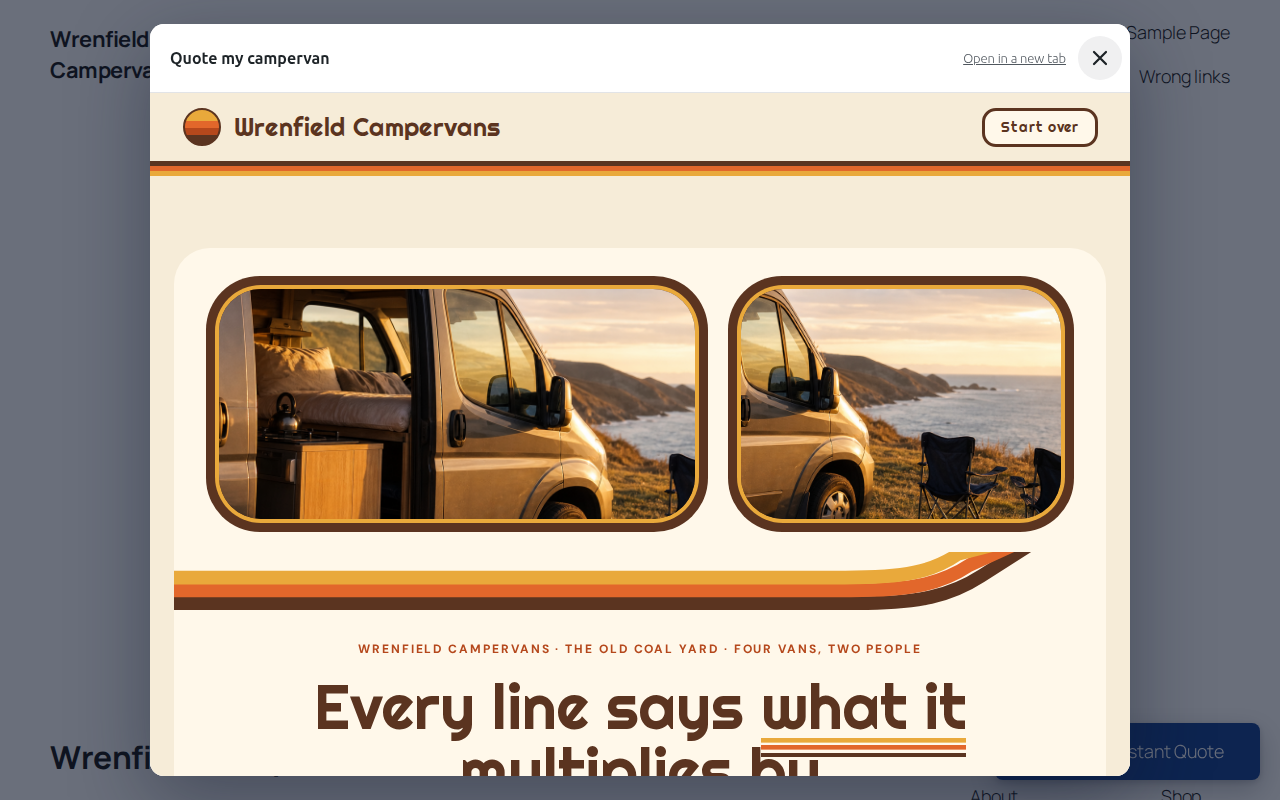
Add a floating Get an Instant Quote button, place a quote-button block in a page, or turn an existing theme button or menu link into a quote button with #instant-quote. Each opens your booking page in a popup, so customers can start from the page they are already reading.
Different services, different booking pages
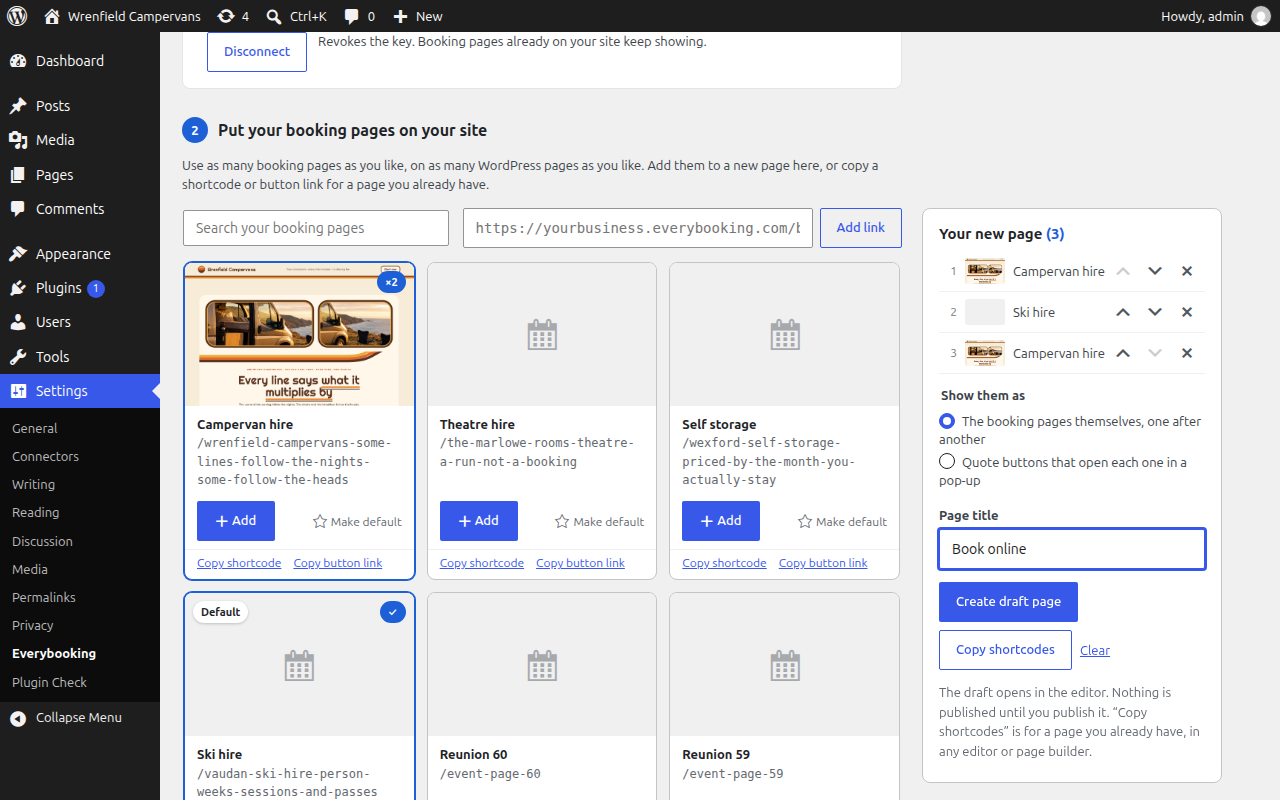
Choose from your published booking pages with the visual picker. Add several to a new WordPress draft page, reorder them, or copy a shortcode for a page you already have. Present a venue package, equipment hire and accommodation separately while keeping them in the same Everybooking business.
Live inventory behind every quote
Price services by time, time slot, day, night or quantity using your Everybooking inventory and rules. A venue can quote evening room hire alongside catering quantities; a rental business can price equipment by the day. The plugin displays the live booking page rather than keeping another stock or price list in WordPress.
From a price to the next step
Customers receive a quotation in 4 seconds on average after supplying the details your pricing needs. They continue through the booking and payment options you have configured. Quotes and bookings reach your Everybooking account, where your team can follow up.
Let your AI assistant help with the booking page and the website.
MCP is optional. Choose the connection for the work you want your assistant to do. Access follows the permissions you give it.
Shape the booking flow in Everybooking
On a plan with MCP access, connect Claude, ChatGPT or Grok to Everybooking through the sign-in flow. Ask it to help change the booking page using supported tools, review the result, and publish in Everybooking. WordPress shows the published page.
Example request: “Help me add a catering choice to my venue booking page.”
Connect your AI to Everybooking →Place pages and buttons in WordPress
On WordPress 6.9 or newer, the WordPress MCP Adapter can expose the plugin's seven abilities to a compatible assistant. It can list your booking pages, place them on pages, create drafts and configure quote buttons. Open the plugin's Options tab for connection guidance.
Example request: “Create a draft page with quote buttons for these two booking pages.”
This uses your WordPress user's permissions. It does not build or publish the underlying Everybooking funnel.
Setup in plain English.
Start with a published booking page in Everybooking and an administrator who can install the plugin in WordPress. The plugin includes a gallery of examples if you are still deciding how your booking page should work.
1. Install the plugin
In Everybooking, open Integrations → WordPress and download the ZIP. Upload and activate it under Plugins → Add New in WordPress.
2. Connect and choose your pages
Open Settings → Everybooking. Paste the restricted connection key from Everybooking to see your published booking pages with preview pictures. Star the page most visitors need as your default. You can also use a general public booking-page link without connecting.
3. Choose an embed or quote button
Add a booking-page block, a popup button or a floating button. To keep an existing theme button, set its link to #instant-quote. You can combine several booking pages in one WordPress draft.
4. Preview and publish
Check the page on a phone and a desktop, including the next booking step. Publish the WordPress page when it is ready. Layout changes inside the booking page are published separately in Everybooking.
WordPress FAQ.
- Do I need an API key to use the WordPress booking plugin?
- You can use a public link to a published booking page without a key. For the visual picker, connect with the restricted WordPress connection key from Everybooking. WordPress stores that key so it can list your published booking pages; it cannot use it to read customers, bookings or prices. You can revoke it in Everybooking.
- Can I use it as a WordPress rental booking plugin?
- Yes. Set up the rental inventory, availability and pricing in Everybooking, then show its booking page in WordPress. This suits equipment hire, venue rental, campervans and other services priced by time, time slot, day, night or quantity. Everybooking handles the quote and booking; the plugin displays that workflow on your site.
- Does it work with Elementor, Divi and the Classic Editor?
- The block editor has booking-page and quote-button blocks. Elementor's Shortcode widget, the Classic Editor and page builders that support shortcodes can use [everybooking] for an embedded page or [everybooking_button] for a popup button. There is no dedicated Elementor widget.
- Can I use my theme's existing buttons?
- Yes. Once you have set a default booking page, change an existing button or menu item's link to #instant-quote. For another booking page, copy its button link from the plugin. You keep your theme's button design and the click opens the selected booking page in a popup.
- Is this a WooCommerce booking plugin?
- The plugin can run on a site that uses WooCommerce, but it does not create WooCommerce carts, orders or payments. The quote, booking and payment workflow runs in Everybooking.
- Do prices and availability update automatically?
- The embedded page checks pricing and availability with Everybooking as the customer goes. The plugin does not store a second set of prices or inventory. Publish design or step changes in Everybooking before expecting them to appear in WordPress. Your booking and hold rules determine when inventory is reserved.
- Can customers return to a quote or use a pre-filled link?
- Progress is remembered in the customer's browser where its privacy settings allow it. Embedded pages and directly opened pages can have separate browser storage. Personal and pre-filled links sent to a customer should open directly on Everybooking, not be added to a public WordPress page.
- Where do I download the plugin?
- In your Everybooking business, open Integrations, then WordPress. Download the plugin ZIP and upload it through Plugins → Add New in WordPress. This is the direct installation route; it does not require finding the plugin in the WordPress.org directory.
- Can I use my own booking domain?
- Yes. Add your custom booking domain under Settings → Everybooking → Options → Other booking addresses before embedding it. If your site uses pages from another Everybooking business, add that address before connecting so those pages stay allowed.
- What changed in WordPress plugin 0.6.1?
- Version 0.6.1 improves the first click on quote buttons when LiteSpeed Cache, WP Rocket or Cloudflare Rocket Loader delays scripts. It includes the popup buttons, multiple-page picker and optional AI abilities introduced in 0.6.0.